Step 5 of 8 · Without a service agent
Servers without a service agent
Copy link to the page “Servers without a service agent”Connect a server without a service agent so the appliance can install certificates on it over SSH or an API.
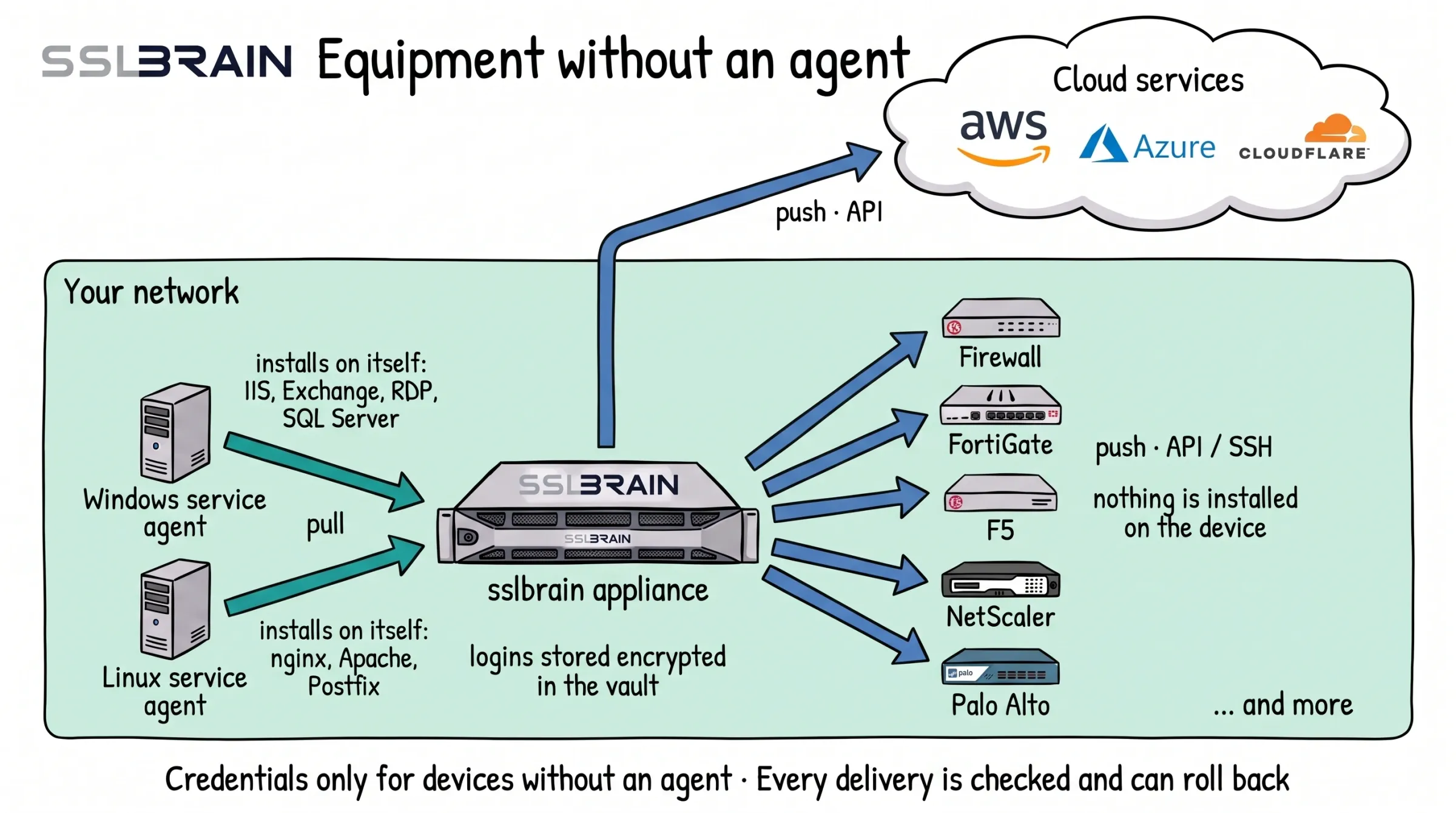
- Windows and Linux servers get a service agent. It fetches the certificate from the appliance and installs it on its own server: IIS, Exchange, RDP and SQL Server on Windows, nginx, Apache and Postfix on Linux.
- Equipment that cannot run a service agent, such as FortiGate, F5, NetScaler and Palo Alto, gets the certificate from the appliance. It logs in through the device’s API (usually port 443) or over SSH (port 22) and installs it. Nothing is installed on the device.
- Cloud services such as AWS, Azure and Cloudflare get the certificate from the appliance through their API.
- The appliance stores logins only for equipment without a service agent, encrypted in its vault. Every delivery is checked, and if it fails, sslbrain can roll back to the certificate that was there before.
What you need
Copy link to the section “What you need”- The server name or IP address and management port.
- A login or API key with the permissions the integration requires.
- Administrator access to the appliance if you need to create a credential.
Connect the server
Copy link to the section “Connect the server”A firewall, load balancer or cloud service also counts as a server.
- Open Servers › Add server › Without a service agent and select the product.
- Enter Hostname or IP address. Set the port if the product default does not apply.
- Select Credential or click Create credential to save the login or key encrypted in the appliance.
- Click Test and add. For SSH, check the server host key. If the appliance shows a certificate it does not trust, use the check under The server management certificate.
Check that it works
Copy link to the section “Check that it works”The appliance confirms that the connection works and the server is saved. Open it under Servers › All servers. Services appear under Certificates. Status Connected · Not automated means it still needs an installation plan.
Next step
Copy link to the section “Next step”Continue with Prove the domain is yours.
If it fails
Copy link to the section “If it fails”- The connection test fails → the server has not been saved. Correct the address, port or credential as the message directs, then click Test and add again.
- Login is rejected → check the permissions in the integration guide and edit the credential under Servers › Credentials.
- No services appear → choose Connection › Refresh server details on the server page.
- The certificate is not installed → follow Installation fails.
Credentials
Copy link to the section “Credentials”Logins and keys are saved encrypted in the appliance vault under Servers › Credentials. SSH uses a password or key. APIs use a token, key and secret, or a custom credential with the fields the integration requires. An operator can select an existing credential; an administrator can create one in the form.
Servers with SSH
Copy link to the section “Servers with SSH”The appliance connects to the server on the integration SSH port, usually 22. The account must be able to install the certificate and reload the service. If you use sudo, the account needs passwordless sudo for the required commands. No service agent is installed on the server.
Servers with an API
Copy link to the section “Servers with an API”The integration runs on the appliance and calls the server API, usually over HTTPS on port 443. Use the product port and the permissions the integration requires.
The server management certificate
Copy link to the section “The server management certificate”Management certificate shows the certificate and its SHA-256 fingerprint. Compare it with the server’s own display before granting trust. Trust the CA that issued the certificate, or the certificate’s public key for a self-signed certificate. If the selected key changes, runs stop until you approve it. The certificate chain consists of the intermediate certificates linking the server certificate to a root the browser trusts.
Install the service agent from the appliance
Copy link to the section “Install the service agent from the appliance”To give a Windows or Linux server a service agent without logging in locally, open Servers › Add server › With service agent, select the platform and use Or let the appliance install it. Enter an administrator login for this installation, check the connection and click Install. The appliance copies and runs its own installer over WinRM for Windows or SSH for Linux.
In a Windows domain, this uses Kerberos on port 5985 with the server’s full name and a domain login; the appliance must reach the domain controller on port 88. Otherwise it uses WinRM over HTTPS on port 5986, where the server management certificate must be approved. The password is never sent over unencrypted HTTP. Avoid saving the administrator login if you only need it for installation.